Month grid
Scan the month at a glance and jump to any day with a single click.
PinkCal is a desktop calendar and appointment reminder built with Flutter. A clear month view, a focused events list, and smart repeating rules — fast, local, and easy to live with.
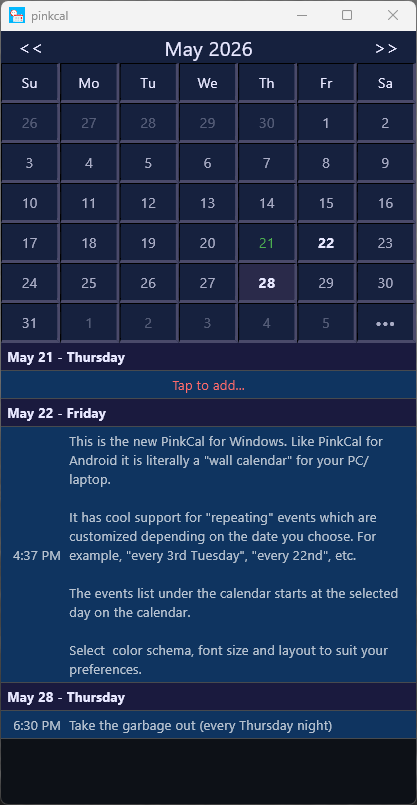
Like PinkCal on Android, this Windows edition is a literal wall calendar for your device — with powerful repeating events you can tailor to the date you pick.
Scan the month at a glance and jump to any day with a single click.
Upcoming appointments grouped by date so nothing slips through.
Add, change, or remove appointments quickly from the same screen.
Optional notifications and alarms when the platform supports them.
Daily, weekly, monthly, yearly — plus patterns like every 3rd Tuesday or every 22nd.
Adjustable font size and multiple color themes to match your taste.
Import your appointments and events from the classic PinkCal (click here for classic) to the new Flutter version.
Portable Windows build — extract and run. All appointments are stored locally on your computer.
PinkCal is new, so Windows SmartScreen has not seen it before. That is normal for independent software and does not mean the app is harmful — Windows is simply being cautious with anything it does not recognize yet.
pinkcal.exe, Windows may show a
blue
dialog titled “Windows protected your PC” and block the program from starting.
Follow the steps below to continue.
Unzip pinkcal.zip to a folder (for example, Documents\PinkCal).
Double-click pinkcal.exe to launch.
The warning hides the run button at first. More info expands the dialog and reveals the option to proceed.
PinkCal will start. You should only need to do this once — later launches open normally.
Microsoft Defender SmartScreen prevented an unrecognized app from starting. Running this app might put your PC at risk.
After the first successful launch, Windows remembers your choice and PinkCal opens without this extra step.